NotaryBoard is free for notaries, forever. It shows the title agencies you work with when you're free, so they can send you signings without calling around.
It doesn't hand out signings. It makes you visible to the agencies who send them, so the agencies you connect with are where the work comes from.
Agencies only ever see when you're busy. Never your event titles, locations or who you're meeting.
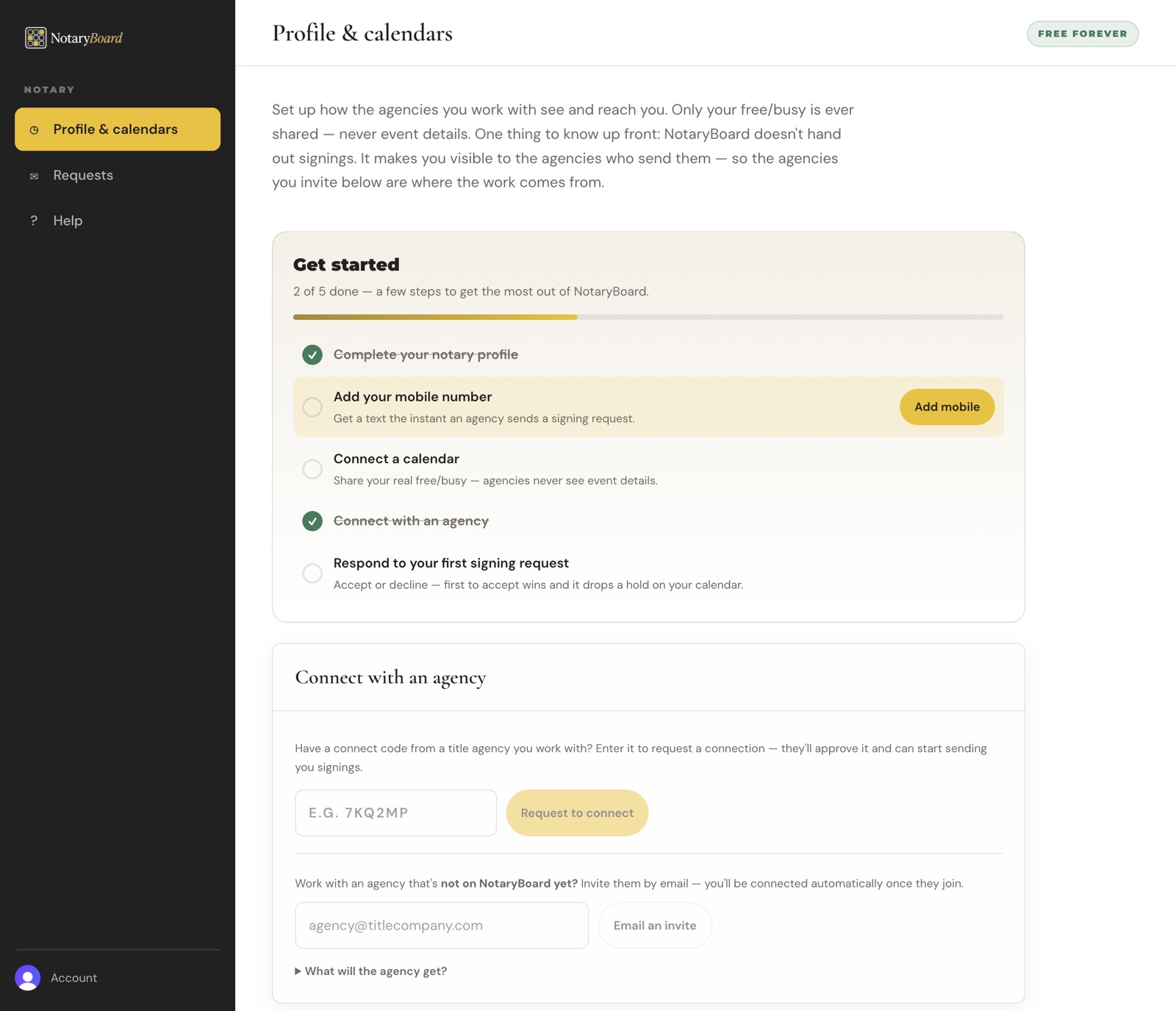
The Get started checklist shows what's left to set up.
2. Get set up
Your Profile & calendars page has a five-step checklist:
Complete your notary profile.
Add your mobile number, so you get a text the moment an agency sends a signing.
Connect a calendar, so agencies see your real free and busy times.
Connect with an agency.
Respond to your first signing request.
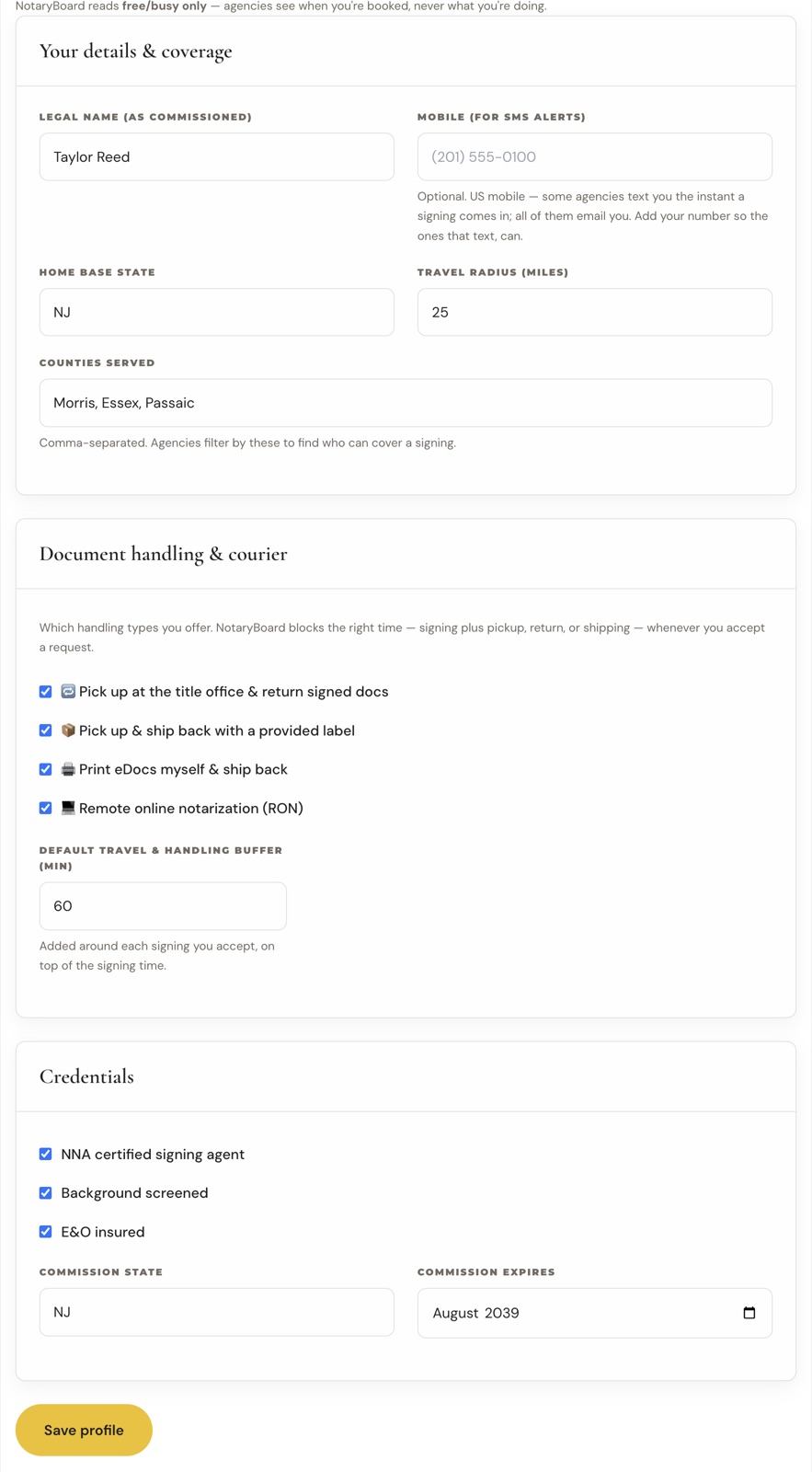
3. Fill in your profile
Legal name, as it appears on your commission.
Mobile number for text alerts (optional, but it's how you hear first).
Home state and how far you'll travel.
Counties you serve. Agencies filter their board by county, so list every one you cover.
Document handling you offer, such as pick up and return to the office, ship back, print eDocs, or remote online (RON).
A default travel and handling buffer: time added around each signing you accept, on top of the signing itself.
Your credentials: NNA certified, background screened, E&O insured, and your commission state and expiration.
Click Save profile.
4. Connect your calendar
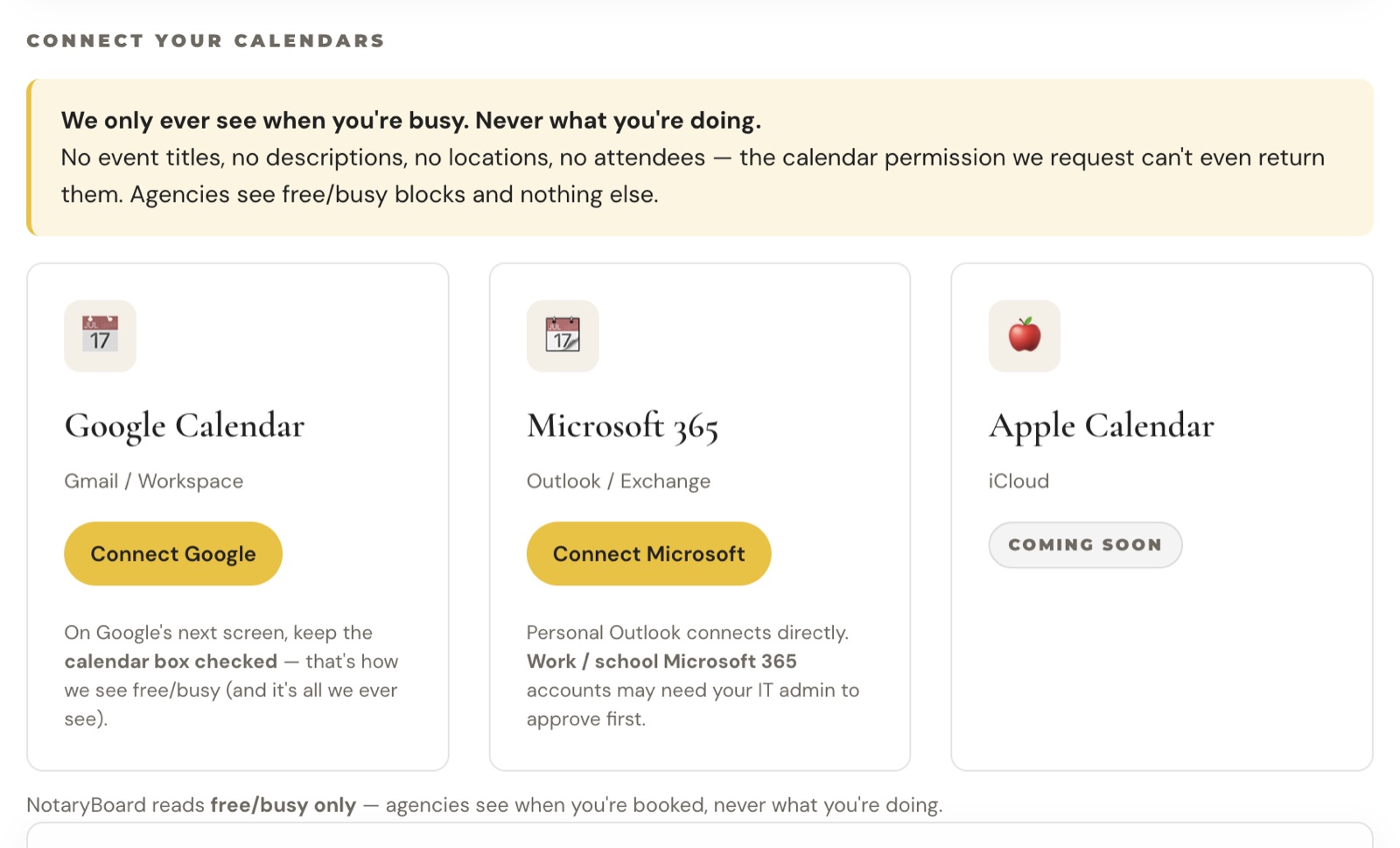
Connect Google Calendar or Microsoft 365 / Outlook. NotaryBoard reads only when you're busy. Your calendar can't even send us event titles, descriptions or attendees. When you accept a signing, we add a hold to your calendar so you don't double-book.
Under Connect your calendars, click Connect Google or Connect Microsoft.
Sign in with your calendar account and allow access.
Your free and busy times start showing on your agencies' boards within minutes.
Apple Calendar is coming soon.
Disconnect any time. Your calendar data is deleted right away.
5. Connect with your agencies
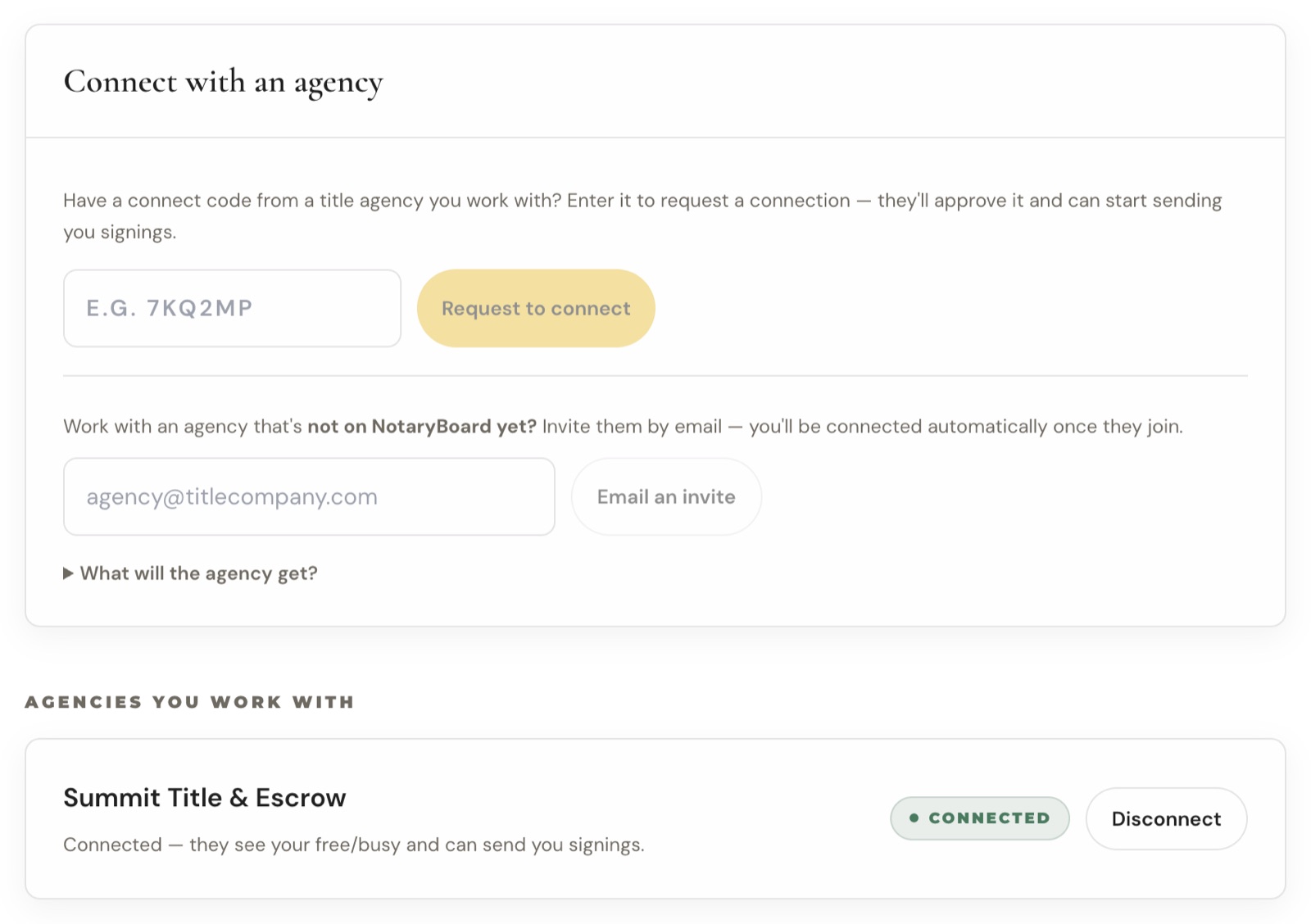
Got a connect code from an agency? Enter it under Connect with an agency and click Request to connect. The agency approves you.
Agency not on NotaryBoard yet? Enter their email and click Email an invite. You're connected automatically once they join.
Invited by an agency? Open the invitation and accept it, and you're on their board.
Your agencies are listed under "Agencies you work with". Disconnect one any time and they stop seeing your availability.
6. Accept or decline a signing
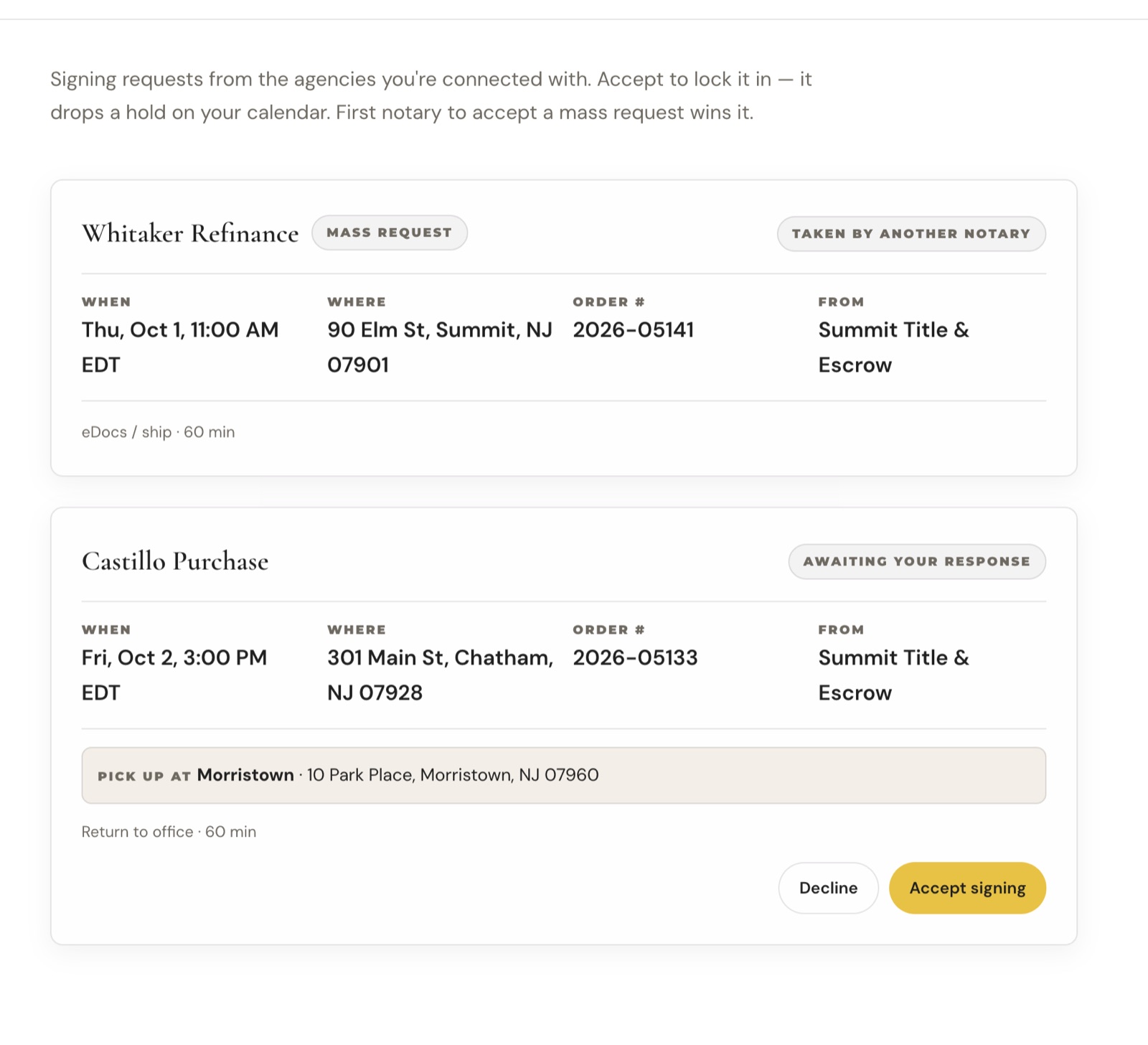
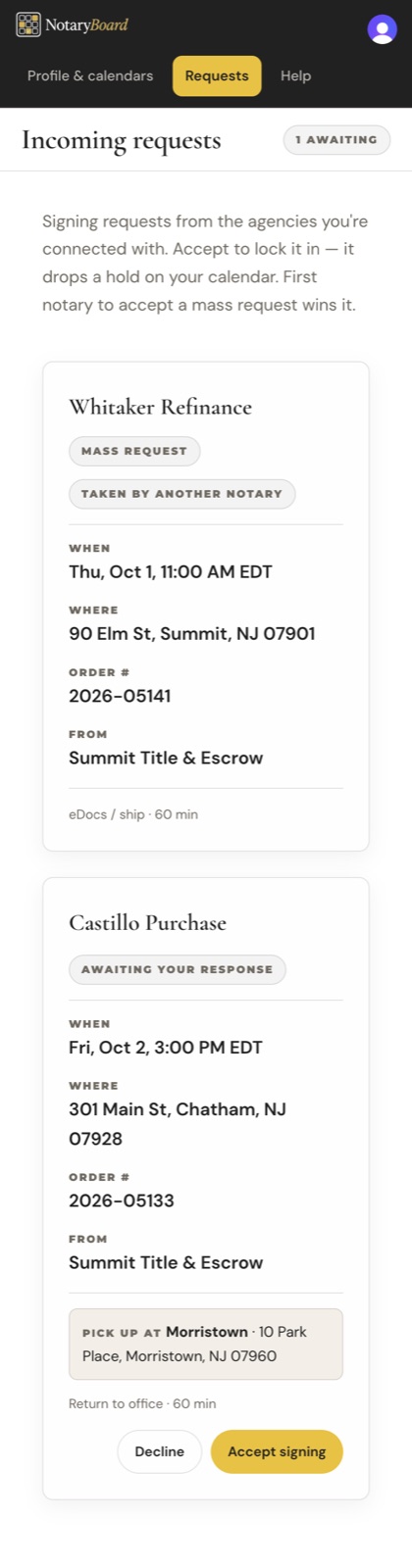
When an agency sends you a signing, you get an email, and a text if you added your mobile. Open Requests to see every detail: when, where, order number, pickup office and how documents are handled.
Tap Accept signing to take it, or Decline to pass.
If the agency sent it to several notaries, the first to accept gets it.
When you win, the signing is yours. If your calendar is connected, a hold goes on it automatically.
If someone else got there first, the request shows "Taken by another notary" and you're free for that time.
7. Answer by text
If you added your mobile and the agency is on the Pro or Agency plan, requests arrive by text with the full details and a short code.
Reply YES and the code (for example, YES 4821) to accept.
Reply NO and the code to pass.
You get a reply straight back: the signing is yours, or it was already covered.
Reply STOP to any text to stop getting them.
Everything works on your phone, in the browser.
8. Messages you'll get
New signing request: details and a link to accept or decline.
Updated signing request: the agency changed the details. The new ones replace the old.
Covered: someone else accepted a request you hadn't answered, so you're free for that time.
Cancelled: the agency cancelled a signing you accepted. The hold comes off your calendar.
9. Getting help
Click Help in the sidebar, or email support@notaryboard.io. A real person answers.
Screenshots show a demo agency with made-up people and addresses. Questions? Email support@notaryboard.io.